Aligning Scans
When a project has several scans, each one starts in its own position. The alignment screen is where you fit them together. As the app puts it:
“Align every scan — twice each: lay it out in Top-Down, then set its level in Side.”
Every scan is aligned twice: first its position and rotation seen from above, then its up/down level seen from the side.
Open the alignment screen by tapping a scan in the project’s scan list. Scans must be synced first.
The alignment screen
Section titled “The alignment screen”A sidebar on the left lists all scans (with a quality flag for scans that disagree with their neighbours); the 3D view fills the rest of the screen.
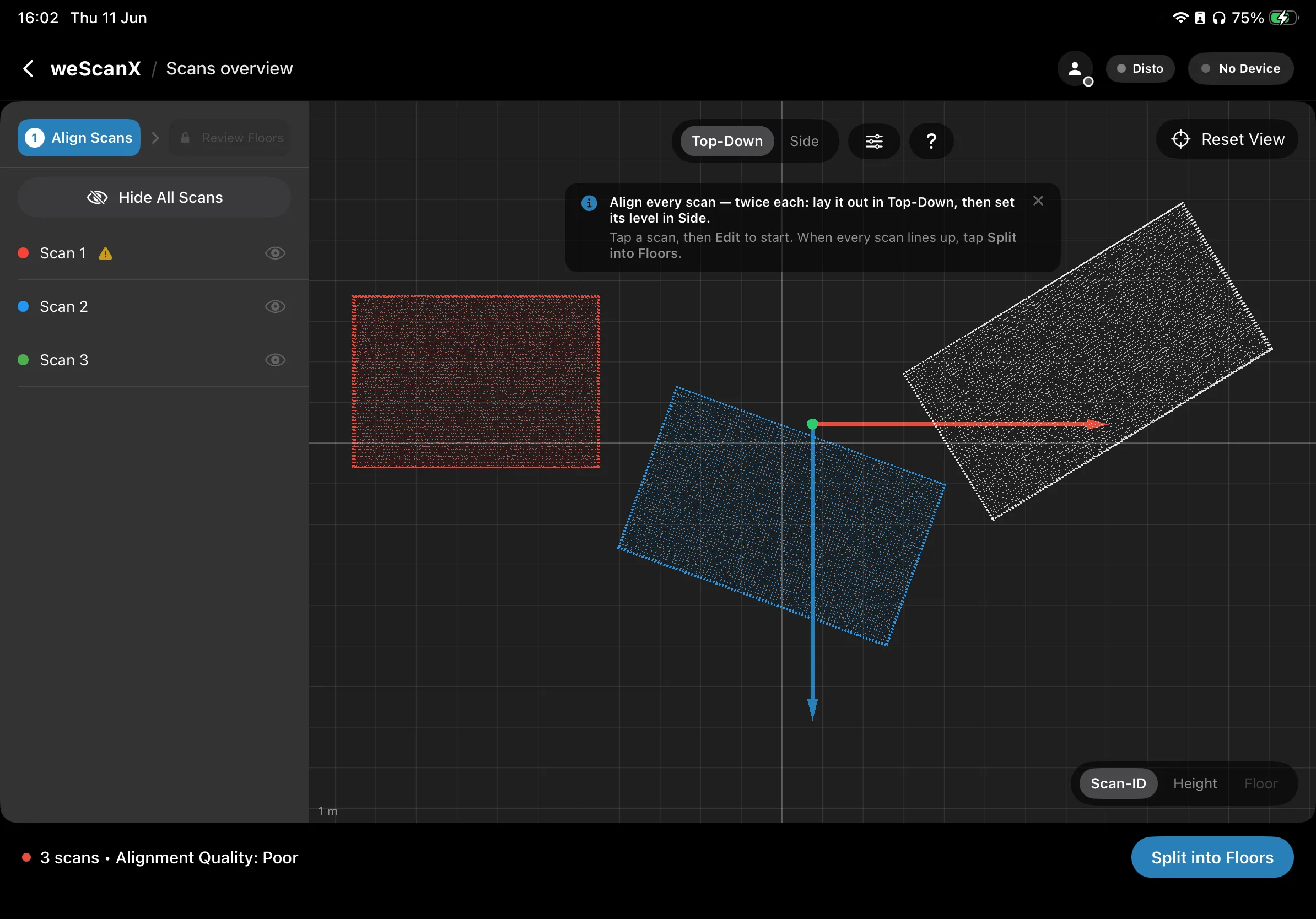
The 3D view fills the screen, with a strip of scan chips below it. Tapping a chip selects that scan; edit controls appear in a sheet at the bottom.
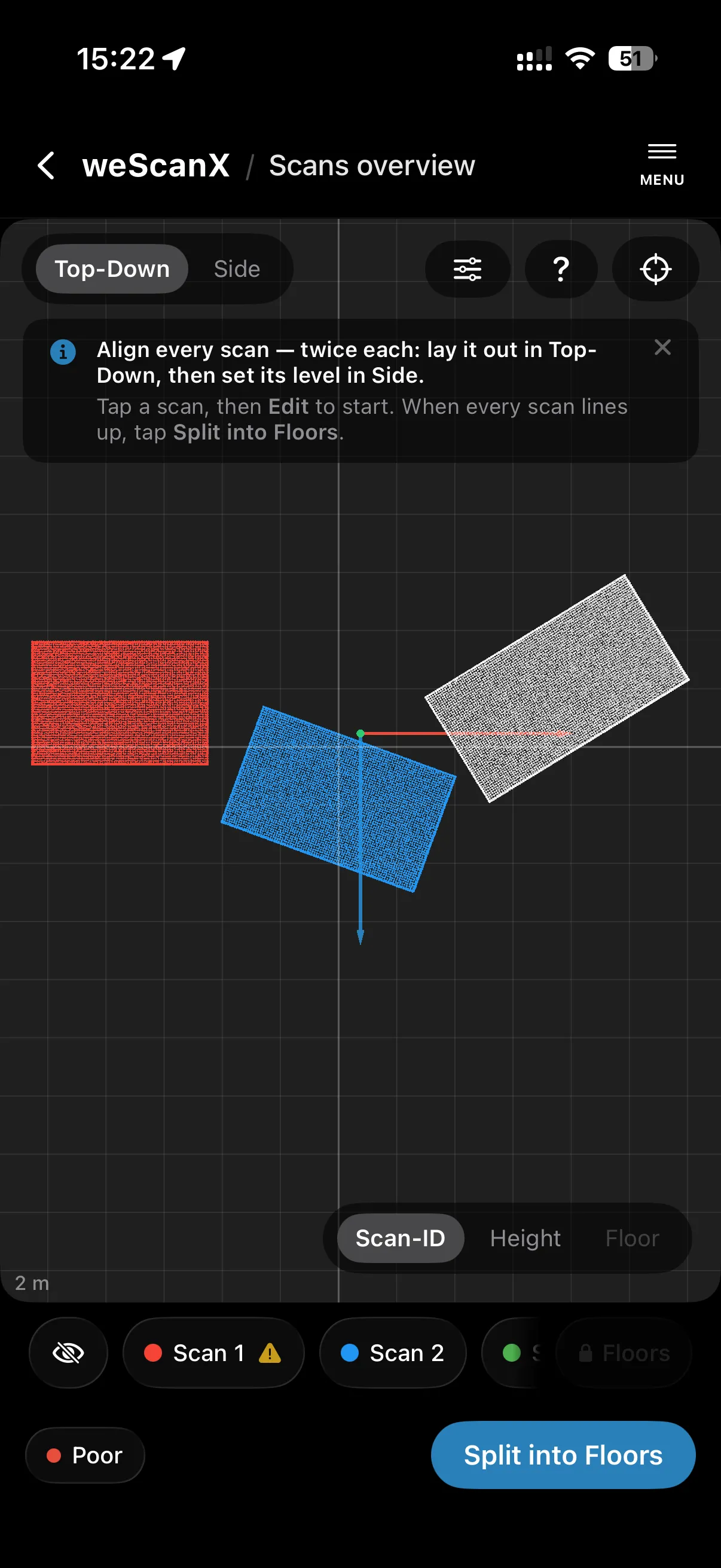
At the top you find:
- Camera presets Top-Down (straight down, for positioning) and Side (from the side, for levels), plus Reset View to recenter the camera.
- A view-settings menu with three toggles: Grid (reference grid and axes), Path (the walked trajectory of each scan), and Snap (snap scan edges onto neighbouring scans when you finish a drag).
- A ? button that recalls the on-screen hint for the current step.
Step 1 — position the scan from above
Section titled “Step 1 — position the scan from above”-
Make sure Top-Down is active.
-
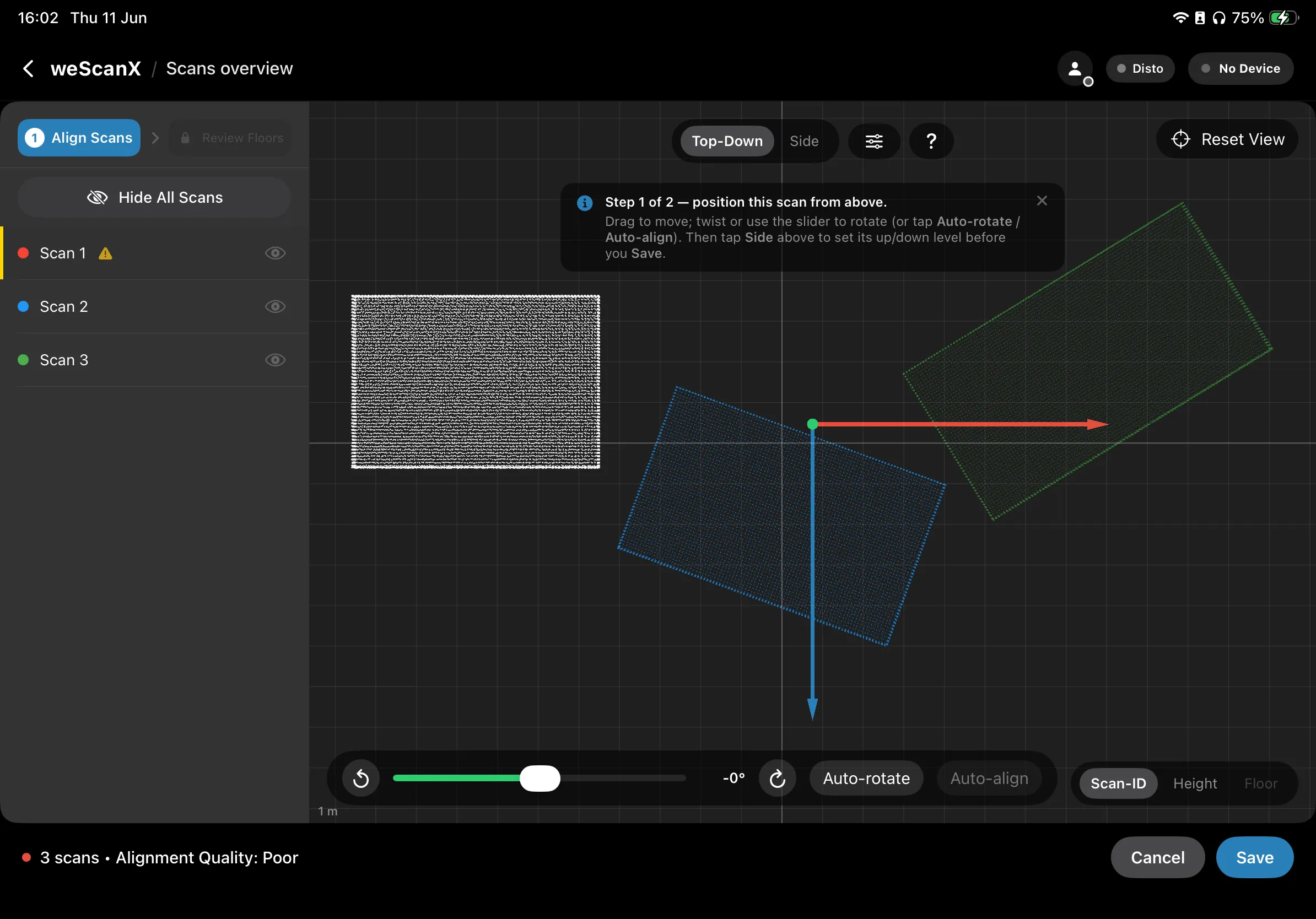
Tap a scan, then tap Edit. The hint reads: “Step 1 of 2 — position this scan from above.”
-
Drag the scan to move it; twist or use the slider to rotate. The two arrow buttons rotate by 90 degrees.
-
Or let the app help: Auto-rotate squares this scan with the walls; Auto-align also moves it onto the scans you aligned before.
-
With Snap on, finishing a drag near a neighbour’s wall snaps the edges together — a preview line shows where it will land.
Step 2 — set the scan’s level
Section titled “Step 2 — set the scan’s level”-
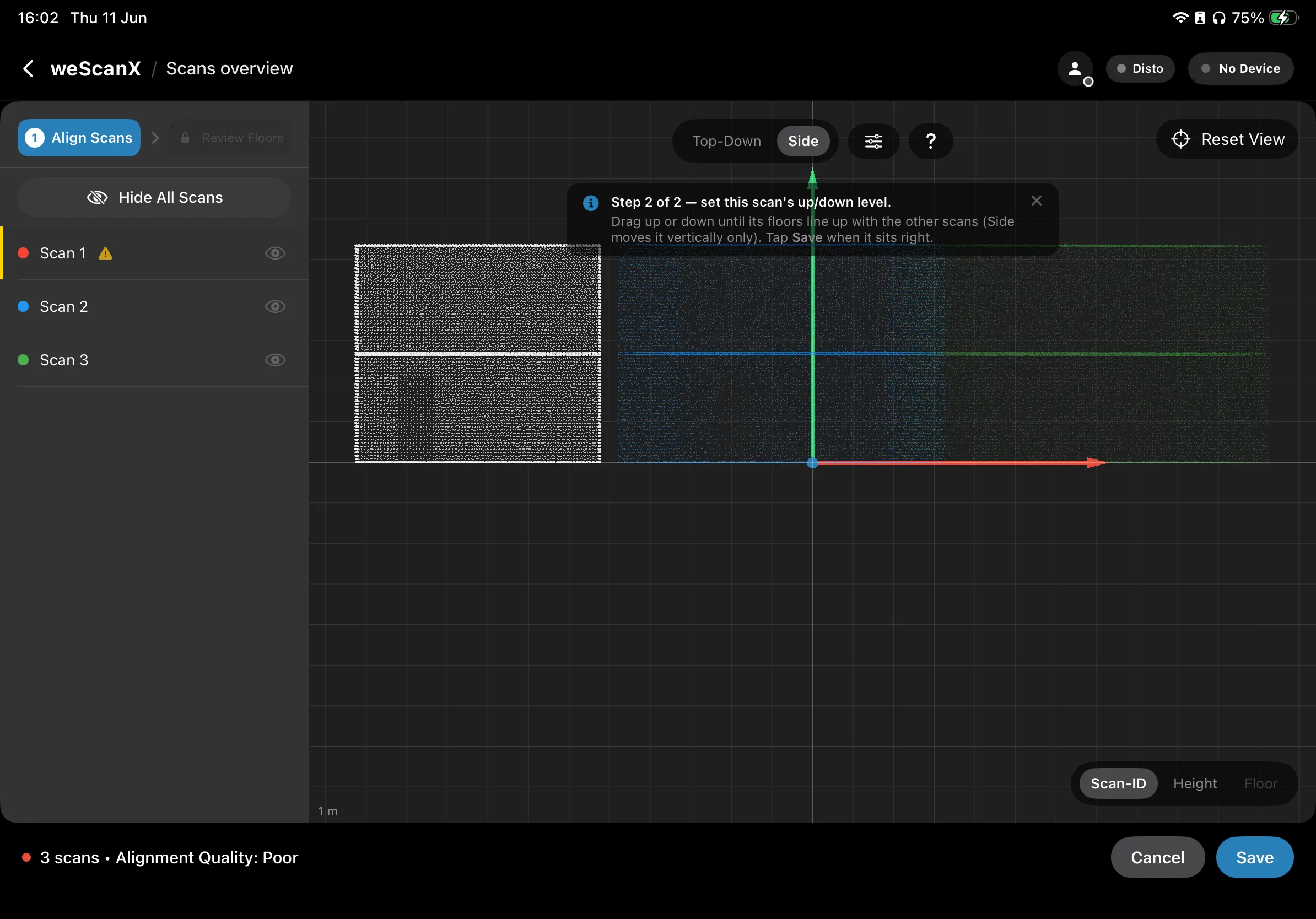
With the same scan still in edit mode, tap Side above. The hint reads: “Step 2 of 2 — set this scan’s up/down level.”
-
Drag up or down until its floors line up with the other scans. Side moves the scan vertically only — your Top-Down placement is safe.
-
Tap Save. (Or Cancel to discard, or Reset to default to return the scan to its starting pose while staying in edit mode.)
Repeat both steps for every scan. The footer shows the scan count and, once saved, an Alignment Quality rating (Good / Fair / Poor) for the combined model.